
This page will allow you to track your studios performance both from the prior day as well as your
progress to your monthly goal all in one place. The Daily Pulse provides a single module to see Memberships, Attendance, Conversions & Activities.
Before you continue reading...
- The Daily Pulse Report (page) is located under the Activities tab.
- Permission access need is 'Daily Pulse Report.'
- Report calendar is limited to singular day.
Goal Progress Bars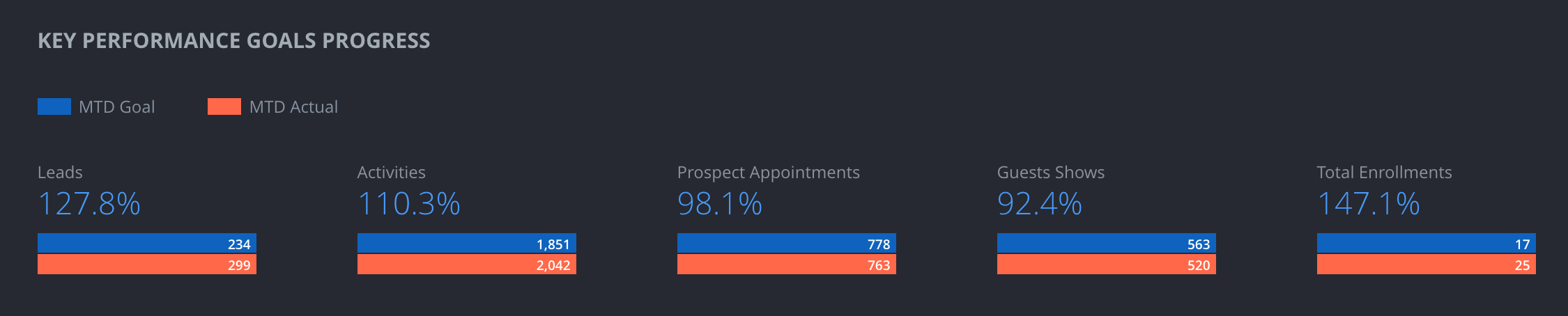
For all progress bars, we will use the total monthly goal and divide by the number of days in each month to determine a daily goal. We will then show your progress based on the day of the month. The daily goal will show you if you are on track to hit your monthly goal.
Example - If your goal is 120 Leads for the month of April, you should be at 40 leads by April 10. 120/30 = 4 per day. 10 days x 4 per leads day = 40. The blue is the amount you should be at by that day of the month. The red bar will be your actual. The percentage above the bars will let you know if you are above, below or right on track to your goal.
Table Columns
Prior Day: This is the last day of data that iKizmet has available.
Daily Need: Based on your monthly goal, this column shows you what you need every day for the rest of the month to reach your monthly goal.
% Daily Goal: Visually see how much you were off or over your daily need.
Total MTD: This is where your studios is as of yesterday.
Forecast: Based on the prior days numbers, we will forecast where you will be at the end of the month if your studios continues at the same pace.
Monthly Goal: This is the monthly goal you set on the Goals page.
% Goal: Giving you the amount above or below your goal based on forecasted.
Key Performance Indicators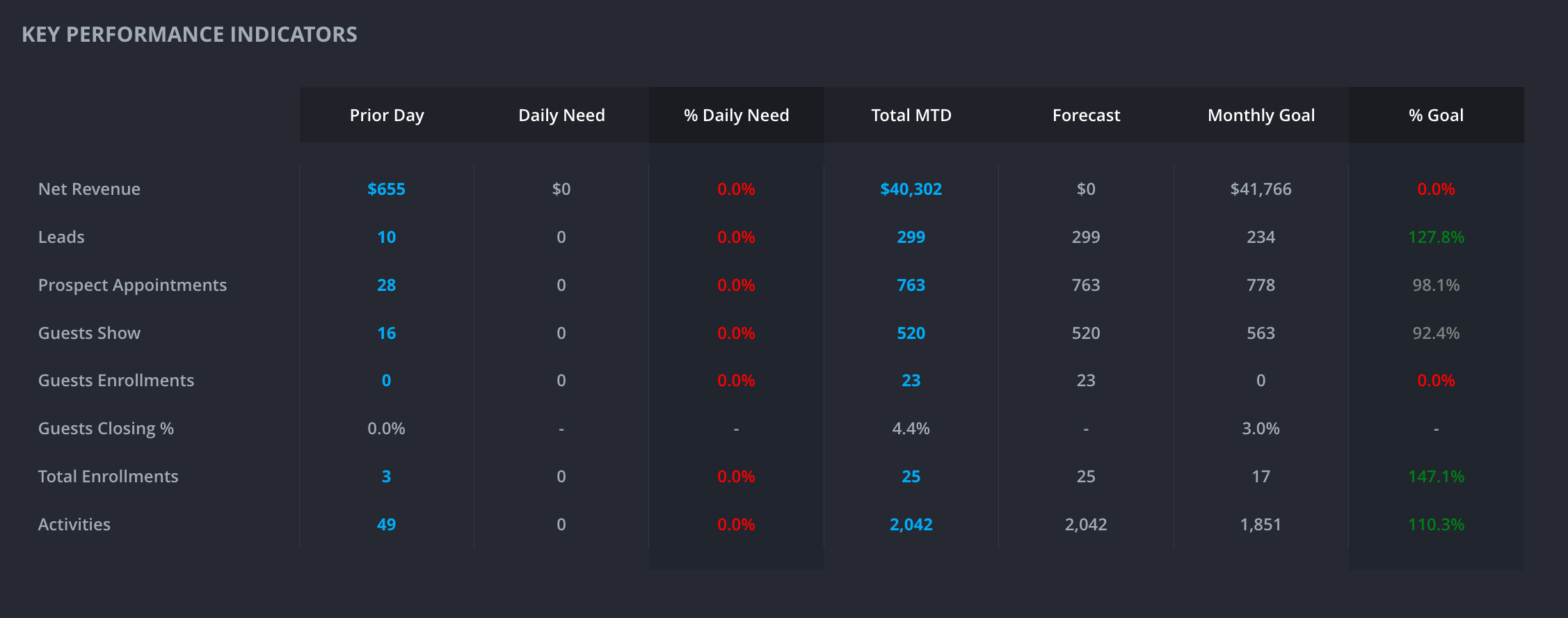
Net Revenue: Total revenue after removing refunds and returns.
Leads: The number of new profiles created in ClubReady.
Prospect Appointments: Any appointment booked for a prospect. A prospect is a client that has not yet converted to a qualifying package or membership. Qualifying packages are based on iKizmet mapping. Confirm with your brand contact on what is to be considered a qualifying package. This number will count multiple bookings of the same prospect.
Guest Shows: A guest is a prospect who completed a visit. This metrics will show all completed visits by prospects/guests.
Guest Enrollments: The number of the above Guest Shows that purchased a membership or qualifying package. This metric will only count unique clients. If a client had multiple Guest Shows, they would still only show once in Guest Enrollments.
Guest Closing %: The total number of Guest Enrollments divided by the number of Guests Shows.
Total Enrollments: The total number of enrollments for the business, not confined to Guest Shows.
Activities: A guest is a prospect who completed a visit. This metrics will show all completed visits by prospects/guests.
Appointment & Guests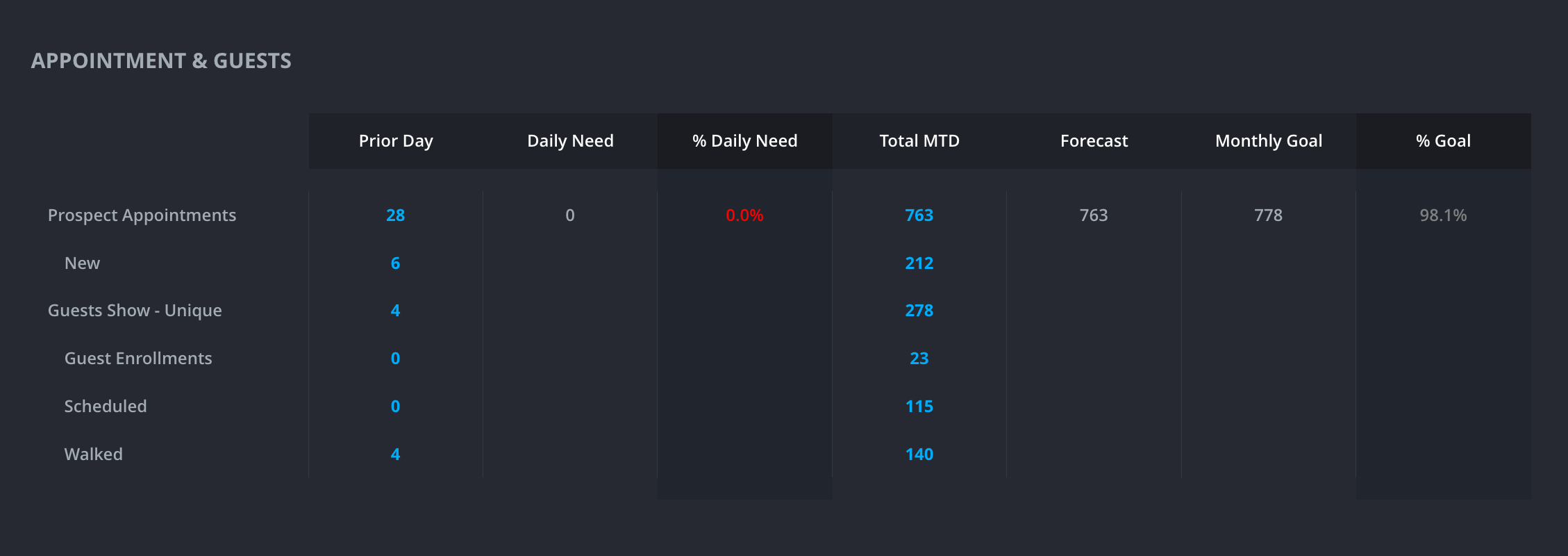
Prospect Appointments: Any appointment booked for a prospect. A prospect is a client that has not yet converted to a qualifying package or membership. Qualifying packages are based on iKizmet mapping. Confirm with your brand contact on what is to be considered a qualifying package.
New: Of the Prospect Appointments, How many of the Prospect Appointments were the very first booking.
Guest Shows - Unique: A guest is a prospect who completed a visit. This metrics will show only the first completed visit by prospects/guests during the time selected.
Guest Enrollments: Of the number Guest Shows how many purchased a qualifying package.
Scheduled: Of the number Guest Shows how many did not purchase BUT scheduled another appointment.
Walked: Of the number Guest Shows how many did not purchase NOR scheduled another appointment.
Guest Enrollments, Scheduled and Walked will add up to Guest Shows - Unique
Closed Guests
Membership: Of the total number of Guest Enrollments for the month, how many purchased a membership.
Package: How many of the Guest Enrollments purchased a qualifying package.
Intro Offer: How many of the Guest Enrollments purchased an Intro Offer. This will only display if your brand has iKizmet tracking Intro Offers and is based on mapping.
Activities
Calls: Looking at the monthly numbers, all logs that are entered as Called as the method type and has a staff name associated.
Texts: All logs that are entered as Texted as the method type and has a staff name associated.
Emails: All logs that are entered as Email as the method type and has a staff name associated. We are not included any system generated emails.
In-Person: All logs that are entered as “Spoke Face to Face” as the method type and has a staff name associated.
Daily Averages: Taking the total number of contacts for each method and dividing by the number of days of the month based on the calendar control.
For all contact logs, iKizmet is only displaying what is being entered into ClubReady. If your brand or studio is using a tracker that is not flowing into ClubReady, that data will not appear in the dashboard.
Utilization MTD
Avr. (Average) Class Size Attendees: Average of total completed (signed-in) visits divided by capacity.
Avr. (Average) Class Open Spots: Average of spots available, not booked spots divided by number of classes.
Utilization
Spots Available: Class capacity.
Visits: Completed, signed-in visits.
Utilization: Spots booked against the spots available, class capacity.
Number Of Classes: Total number of classes available.
Avr. (Average) Class Size Spots Available: Average of class capacity.
Avr. (Average) Class Size Attendees: Average of total completed (signed-in) visits divided by capacity.
Avr. (Average) Class Open Spots: Average of spots available, not booked spots divided by number of classes.
1st (First) Visit Closing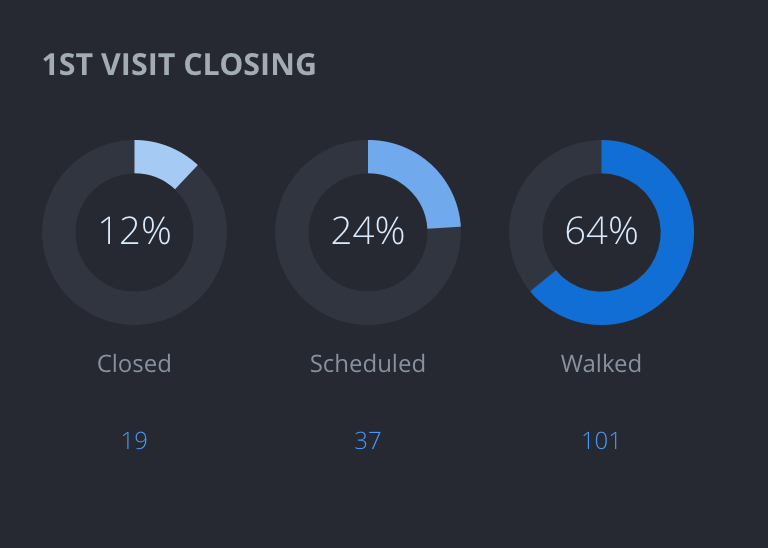
Closed: Of the total number of first visits (for the month) how many purchased a membership or qualifying service on their first visit.
Scheduled: Of the total number of first visits (for the month) how many did not purchase BUT did scheduled another appointment.
Walked: Of the total number of first visits (for the month) how many did not purchase NOR scheduled another appointment.
1st (First) Time Guests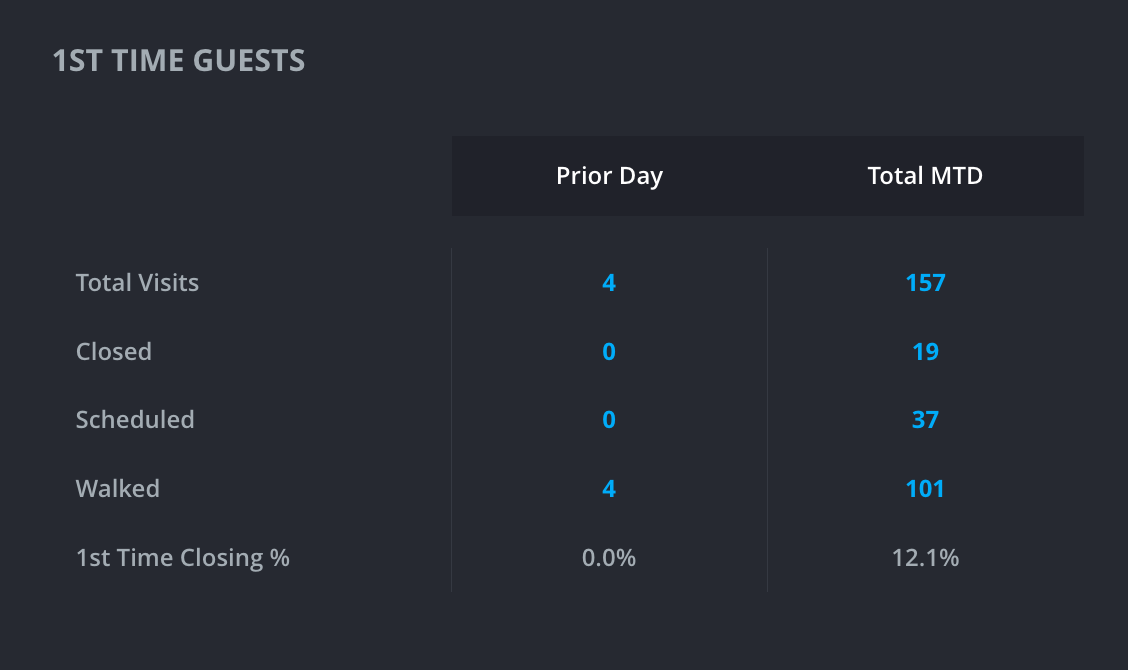
Total 1st Time Visits: Of the total number (for the month) of guest who had their very first visit.
Closed: Of the total number of those first visits (for the month) how many purchased a membership or qualifying service on their first visit.
Scheduled: Of the total number of those first visits (for the month) how many did not purchase BUT scheduled another appointment.
Walked: Of the total number of those first visits (for the month) how many did not purchase NOR scheduled another appointment.
1st Time Closing %: The total number of 1st Time Guests that purchased a membership or qualifying package divided by the number of 1st Time Guests.
Membership & Attrition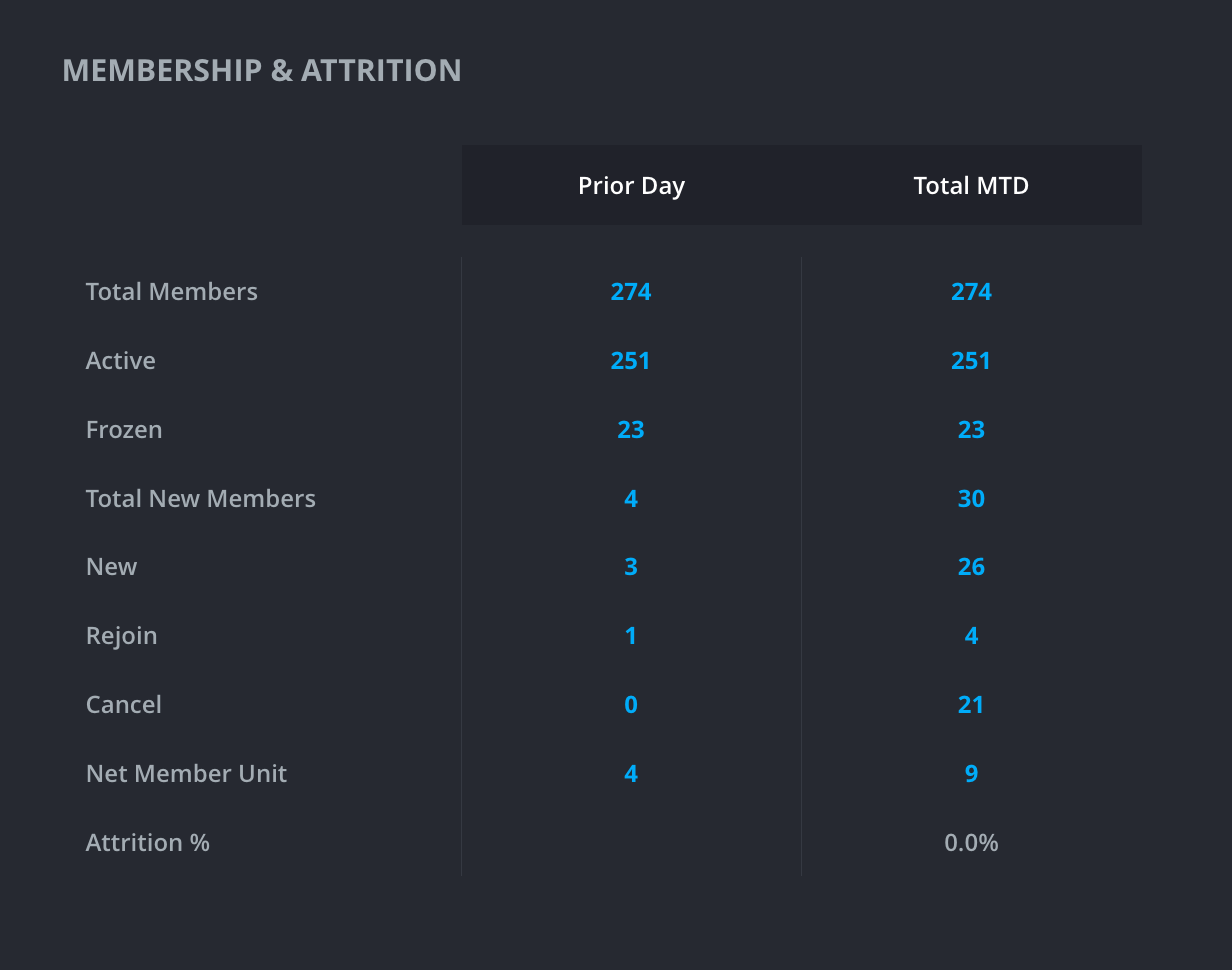
Total Members: Any client with an active membership agreement and a scheduled payment for that membership. This number will include Frozen as they are still a member based on their agreement not being cancelled.
Active Members: Any client with an active membership agreement and a scheduled payment for that membership. This number does not include Frozen members.
Frozen: This is a client whose membership agreement has been frozen by a staff member.
Total New Members: Summing the New and Rejoin members. Total New = New + Rejoin.
New: This status indicates a client that has not been a member with the studio in the past. Returning members will display a Rejoin status rather than new status.
Rejoin: This status indicates a client has returned to active from losing their membership status for at least one day. A client can come back from an expired or terminated agreement.
Cancel: When a client’s agreement is terminated or expired. This status indicates a client who lost their membership status for a reason other than suspension or freeze.
Net Units: Displays the net number of members added the selected date range by summing New members, Rejoin members, and Cancelled members.
Net Units = New + Rejoin - Cancel.
Frozen members are NOT included as they are still a member but in a frozen status so you have not lost nor gained a member.
Attrition Rate: This calculation will show what percentage of members have cancelled.
Note: The attrition calculation is not the same as the one on the My Dashboard.