
The LASER will give you insights into how your sales funnel is progressing; knowing where to focus is key to your sales performance.
Before you continue reading...
- This report will not match what you will see in the referrals report in ClubReady.
- The date selector will only capture the 'Start From' data. All the other data is not confined to the date selector.
- Permission access need is 'Funnel LASER Chart'.
- The LASER report is located under the Activity tab, and under the Sales Activity page.
LASER start from:
- Lead (Profile Creation)
- Appointment (First Booking)
- Show (First Visit)
- Enrollment (First Qualifying Purchase)
- Intro Offer (Introductory Offer Purchase)
- Averages
- Referral Category
Lead (Profile Creation)
The report tracks four key stages in your conversion funnel. Lead represents any new profile created in the system. Appointment narrows that down to leads who scheduled their first booking. Show further refines the count to those who actually attended their first scheduled visit. Finally, Enrollment counts how many of those attendees made a qualifying purchase after their first class or appointment.
Filter Definitions
Prospect Type: Filter by designated prospect types that have been preconfigured within your ClubReady dashboard.
Opt In: Filter by opt-in status type, including Text, Text Non-Promo, and Email.
Date: This feature has two functions. Clicking the first date opens a window to select the start date of your desired time frame. Clicking the second date lets you choose the end date.
Date Range: If you do not want to set your time manually, you can use our pre-set views from this drop down.
First Contact Type: Updates the scorecard values to reflect the average number of minutes or hours until first contact.
First Contact Method: Filter by specific contact type: Call, Text, Email, or In Person.
Future Appointment: When enabled (green), the quantity of 'Appointment' includes future booked appointments within 30 days, and clients will be considered enrolled even if they do not attend. This setting impacts the 'Lead to Appointment Percentage' and 'Appointment to Show Percentage' metrics.
Include Loose Conversions: When enabled (green, default view), clients may be counted as 'Enrollment' even if they do not have an appointment and/or a show. When disabled, clients will not be counted as enrolled unless they have both an appointment and a show
Exclude Enrolled Bookings: This toggle will exclude initial bookings (appointments and visits/shows) when the prospect or lead has already enrolled or converted. If the date of the first booking occurs after the enrollment date, the booking will not be included in the Appointment and Show sections.
Scorecard Definitions
Total Leads: The value shows how many profiles were added in the 'Date Range.'
Avg. Hours to First Contact: The value represents the average number of hours between profile creation and the first documented contact made by staff. Additionally, this calculation takes into account SMS ‘non quiet hours’ to calculate; learn more about the timeframe with our help article Sending Texts Outside of SMS Hours.
Avg. Number of Days to Appointment: The value shows how many days in average 'Leads' go into the state 'Appointment.'
Avg. Number of Days to Conversion: The value shows how many days in average 'Leads' go into the state 'Enrollments.'
Appointment (First Booking)
The report tracks four key stages in your conversion funnel.
Lead represents any new profile created in the system.
Appointment counts all first bookings, regardless of when the profile was originally created.
Show narrows this to first bookings where the customer actually completed their visit.
Enrollment captures how many of those customers who booked and attended their first class or appointment went on to make a qualifying purchase, which includes Memberships, New Client Packages, PT Services, and Packages/Non-PT Services.
What counts as the "first booking"?
The Appointment metric captures the very first booking a lead ever created, regardless of what happened after it was scheduled.
Please Note:
- Booking status does not matter. A booking is counted even if it was later cancelled, rescheduled, or the lead never attended. This stage is intended to measure whether the lead took action — not whether the action was completed. To measure attended visits, use the Show (First Visit) stage.
- The Sales Consult flag is not used. Any booking type counts as an appointment — this metric does not filter by booking type.
Filter Definitions
Date: This feature has two functions. Clicking the first date opens a window to select the start date of your desired time frame. Clicking the second date lets you choose the end date.
Date Range: If you do not want to set your time manually, you can use our pre-set views from this drop down.
Include Loose Conversions: When enabled (green, default view), clients may be counted as 'Enrollment' even if they do not have an appointment and/or a show. When disabled, clients will not be counted as enrolled unless they have both an appointment and a show.
Scorecard Definitions
Total Appointments: The overall number of appointments scheduled.
Average Number of Days to Conversion: This metric represents the average number of days until the first qualifying purchase is made.
Show (First Visit)
The report tracks two key stages in your conversion funnel. Show represents the first completed visit by a client. Enrollment captures how many of those clients who completed their first visit or appointment went on to make a qualifying purchase, which includes Memberships, New Client Packages, PT Services, and Packages/Non-PT Services.
Filter Definitions
Date: This feature has two functions. Clicking the first date opens a window to select the start date of your desired time frame. Clicking the second date lets you choose the end date.
Date Range: If you do not want to set your time manually, you can use our pre-set views from this drop down.
Start From Enrollment (First Qualifying Purchase)
Enrollment represents the number of clients who made their first qualifying purchase of a sales package or membership.
Date: This feature has two functions. Clicking the first date opens a window to select the start date of your desired time frame. Clicking the second date lets you choose the end date.
Date Range: If you do not want to set your time manually, you can use our pre-set views from this drop down.
Intro Offer (Introductory Offer Purchase)
The report tracks three key stages in your conversion funnel. Intro Offer represents the number of clients who purchased a pricing option or package tagged as an Introductory Offer. First Visit captures how many of those clients went on to complete their first visit or appointment. Converted tracks how many clients who purchased an Intro Offer and completed a first visit then went on to make a qualifying purchase of an additional pricing option or package.
Intro Offer: Filter by specific introductory offer packages.
Date: This feature has two functions. Clicking the first date opens a window to select the start date of your desired time frame. Clicking the second date lets you choose the end date.
Date Range: If you do not want to set your time manually, you can use our pre-set views from this drop down.
Include Loose Conversions: When enabled (green, default view), clients may be counted as 'Enrollment' even if they do not have an appointment and/or a show. When disabled, clients will not be counted as enrolled unless they have both an appointment and a show
Averages
The Averages filter allows you to calculate and display your results compared to a selected benchmark. Options include:
- Not Selected - No average benchmark is applied. Results display without comparison data.
- Brand - Calculates and displays your results compared to the average across all locations within the same brand.
- User Access - Calculates and displays your results compared to the average across all locations within your user access level.
Referral Category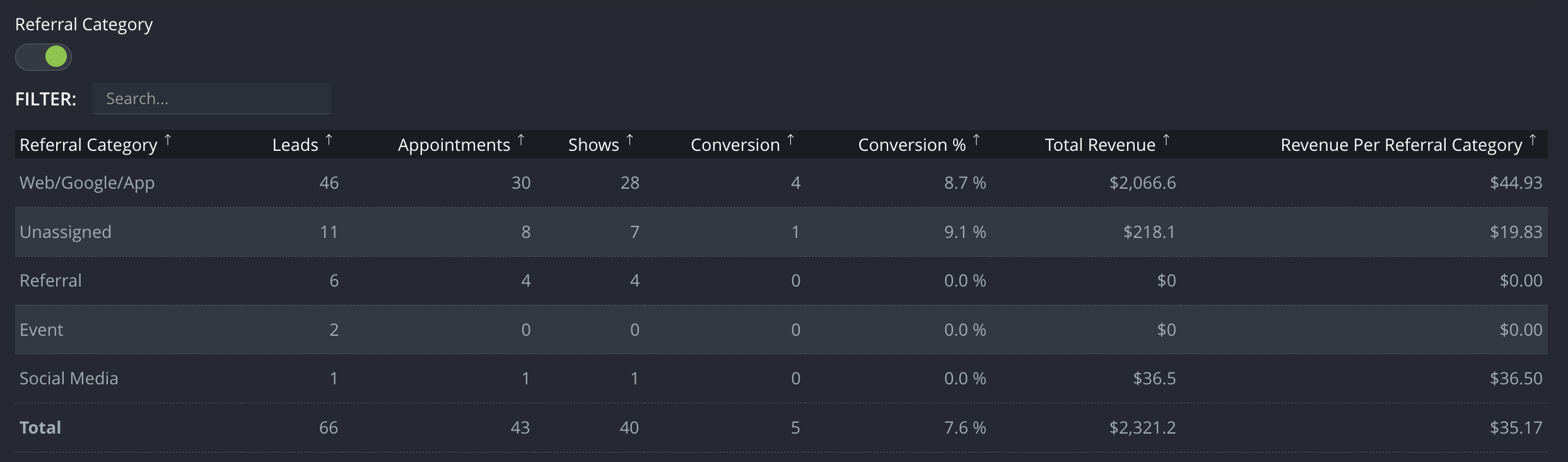
Referral Category: iKizmet referral category.
Referral Source: When toggled off, report displays ClubReady referral source:
Leads: Quantity of Leads for this referral category/source.
Appointments: Quantity of Appointments for this referral category/source.
Shows: Quantity of Shows for this referral category/source.
Conversion: Quantity of Conversion for this referral category/source.
Conversion %: Percent of Conversions by referral category/source.
Total Revenue: All money spent by all leads found for referral category/source.
Revenue Per Referral Source: An average spent by lead for the referral category/source.